Listen
Real-time transcription that listens, understands, and acts — automatically.
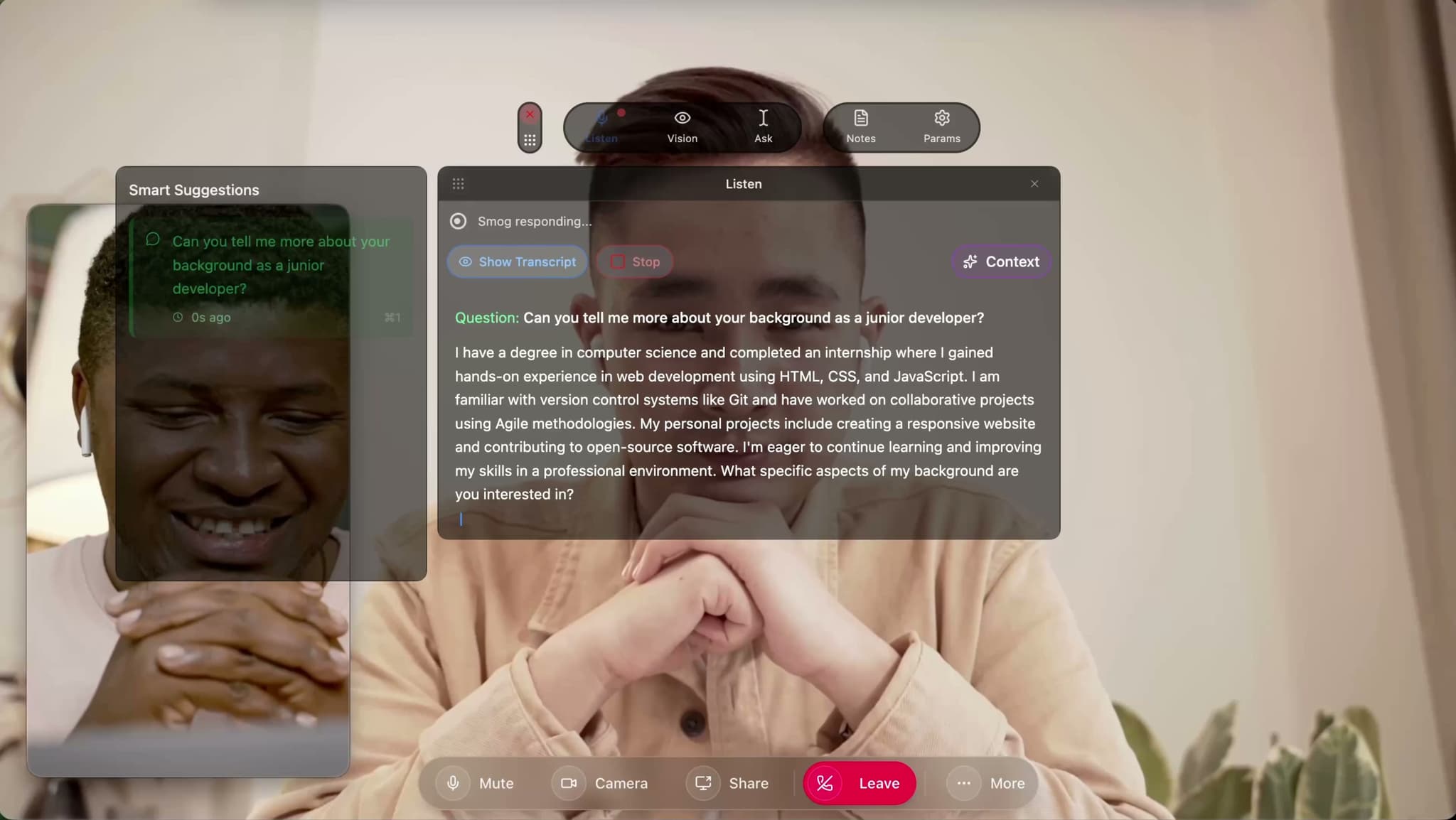
Background Recording
Free/Pro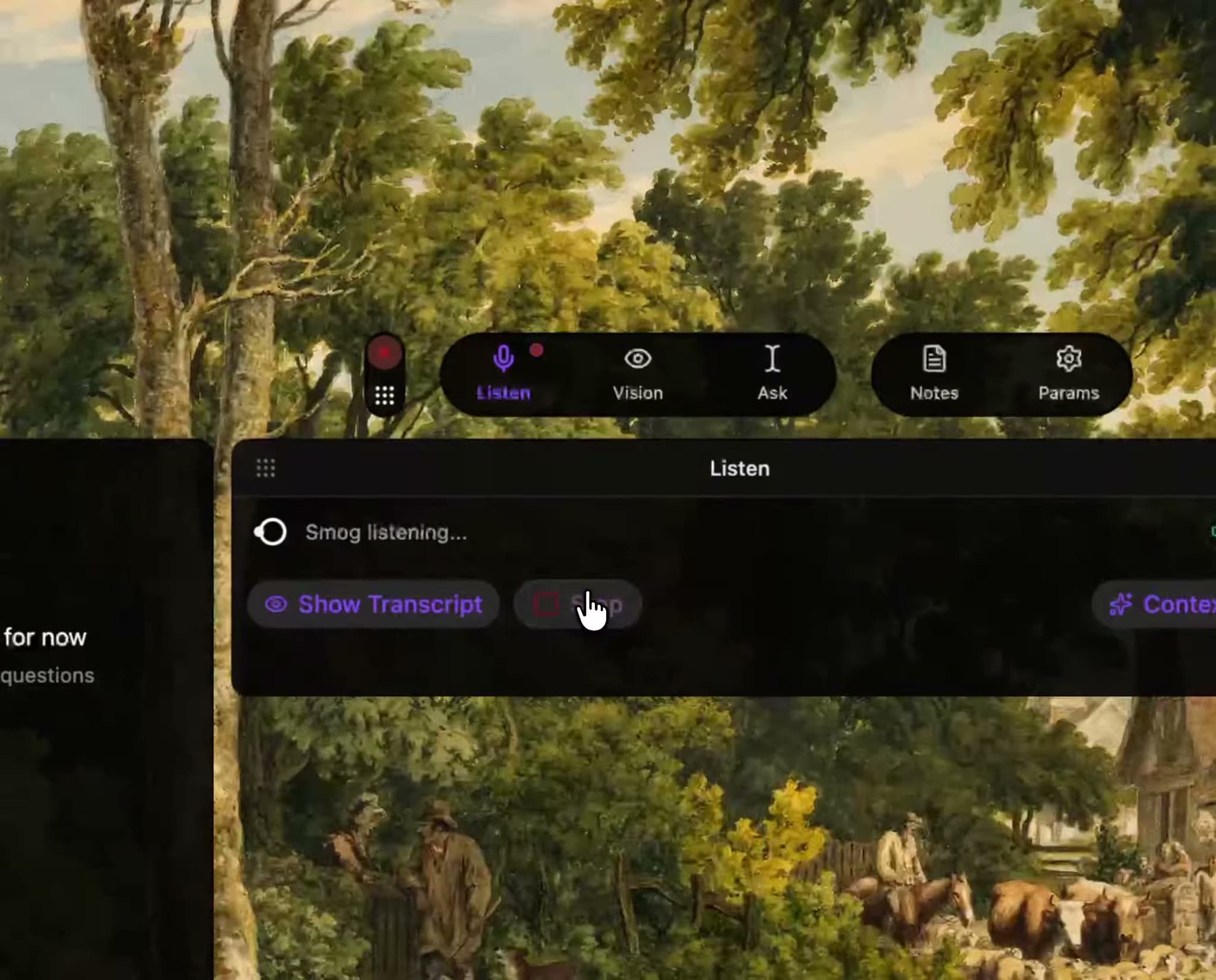
Start once, then hide the window — Listen keeps capturing until you hit Stop. Auto-note when you’re done.
Auto Q&A
Pro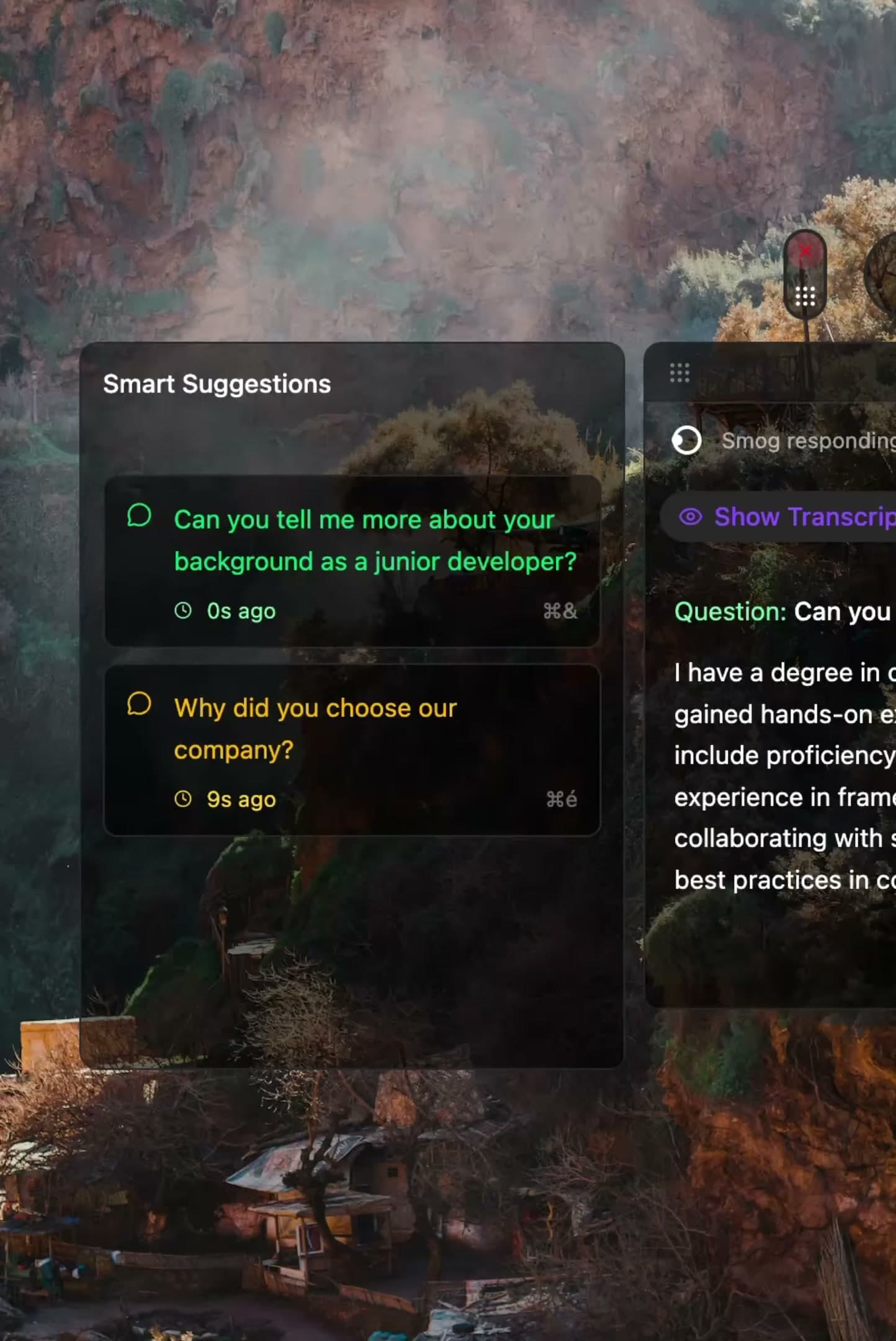
Detects key questions in real time and drafts smart responses you can trigger instantly.
Add Context
Free/Pro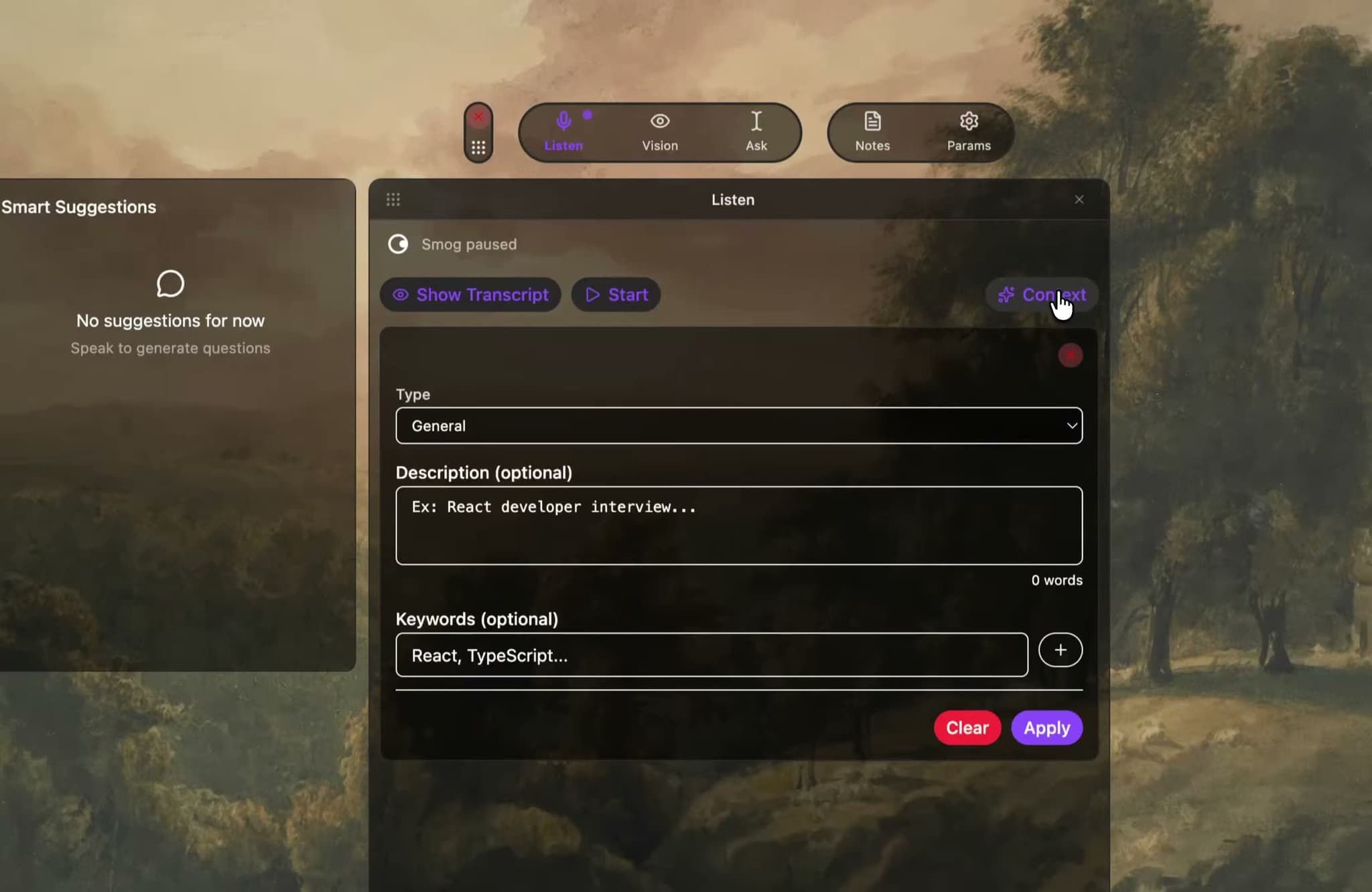
Add a short description or keywords to help the AI stay on context.
Vision
Understands what’s on your screen — and acts on it.
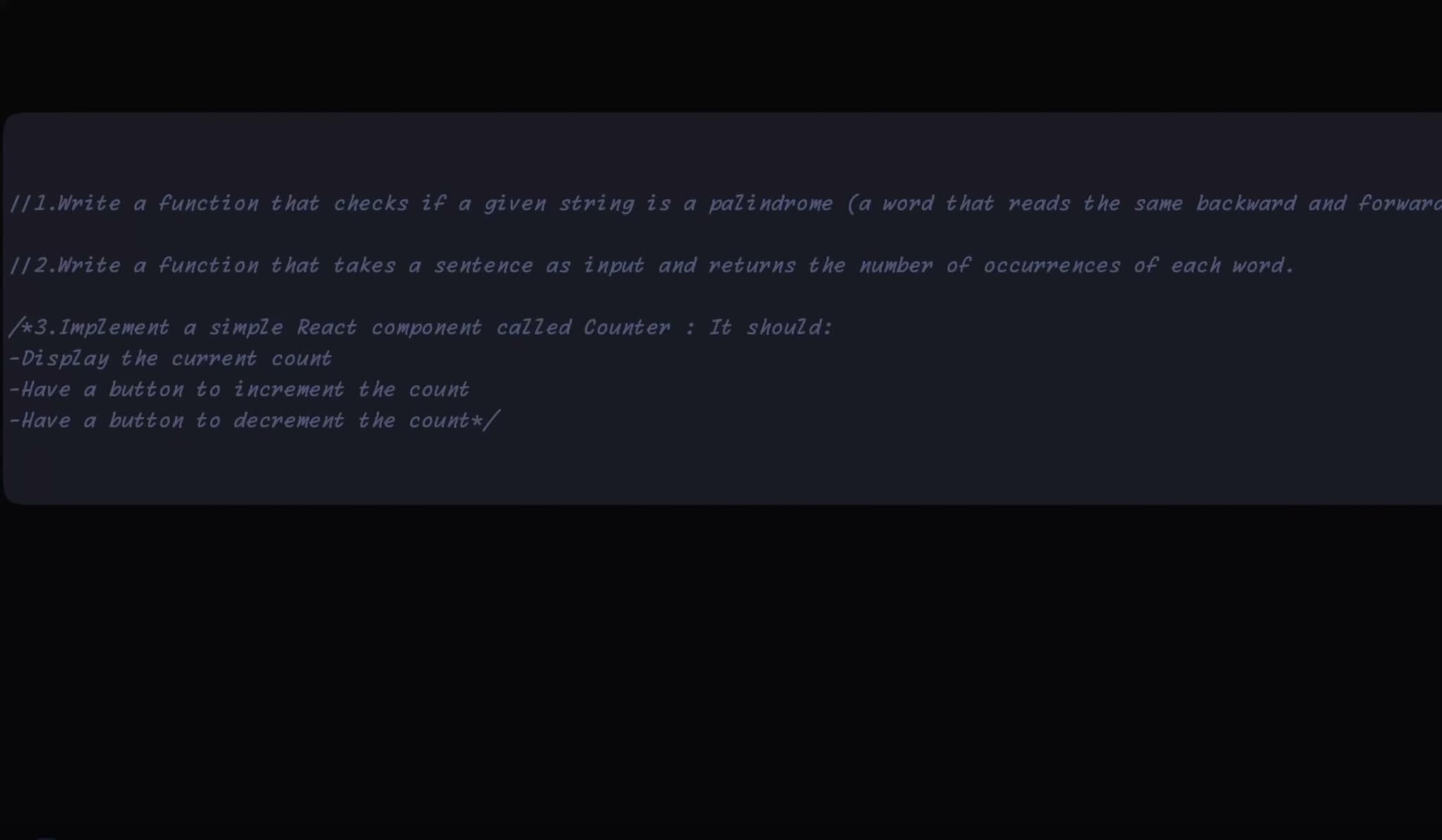
Auto-context
Pro
Detects your screen type — IDE, document, slides, or dashboard — and tailors its response accordingly.
Chat on screen
Free/Pro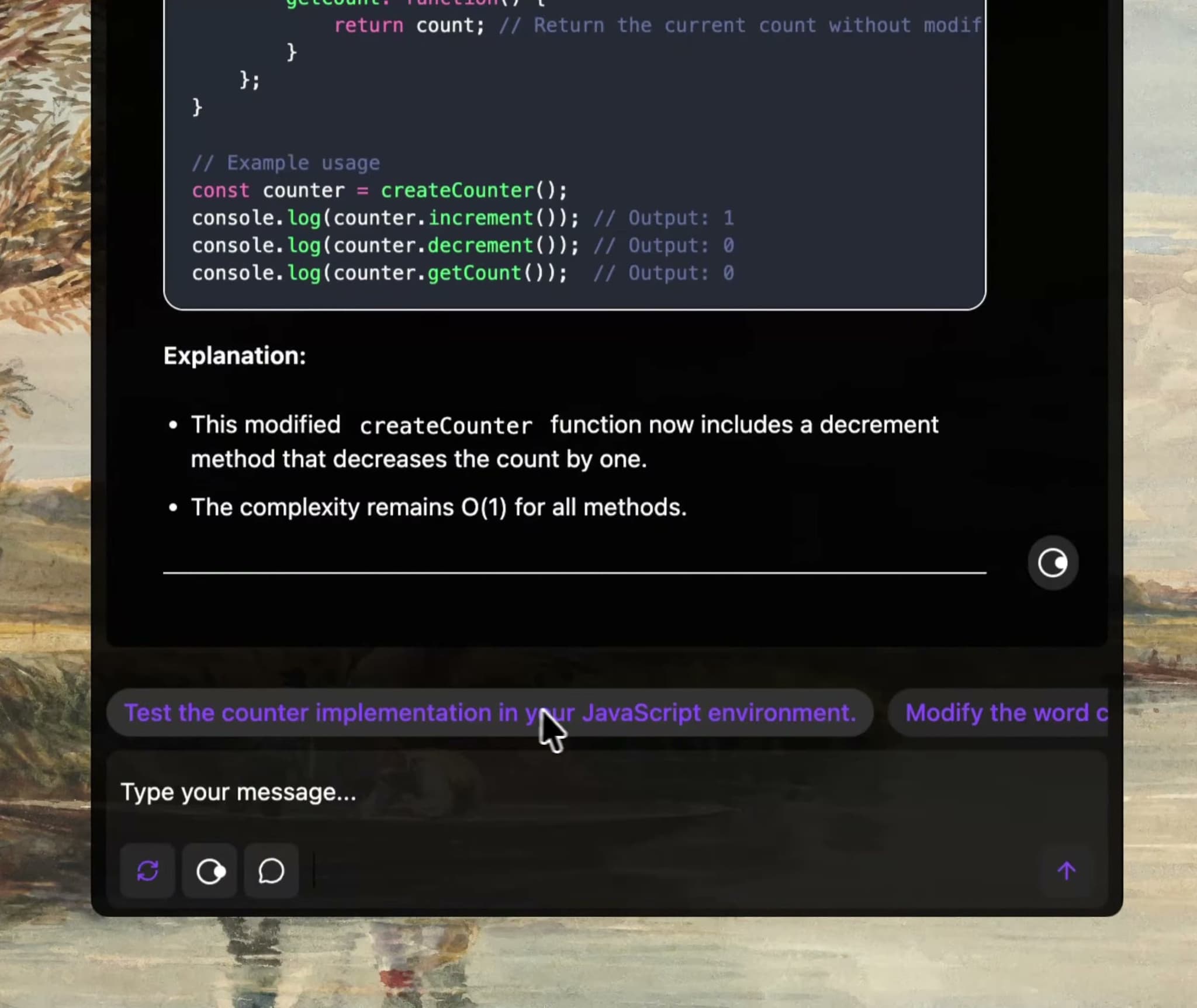
Ask follow-up questions directly on the analyzed view — no re-upload, no loss of context.
CrossReflection
Pro
Launch new analyses anytime. Vision re-examines your screen, compares contexts, and deepens insights — endlessly.
Ask
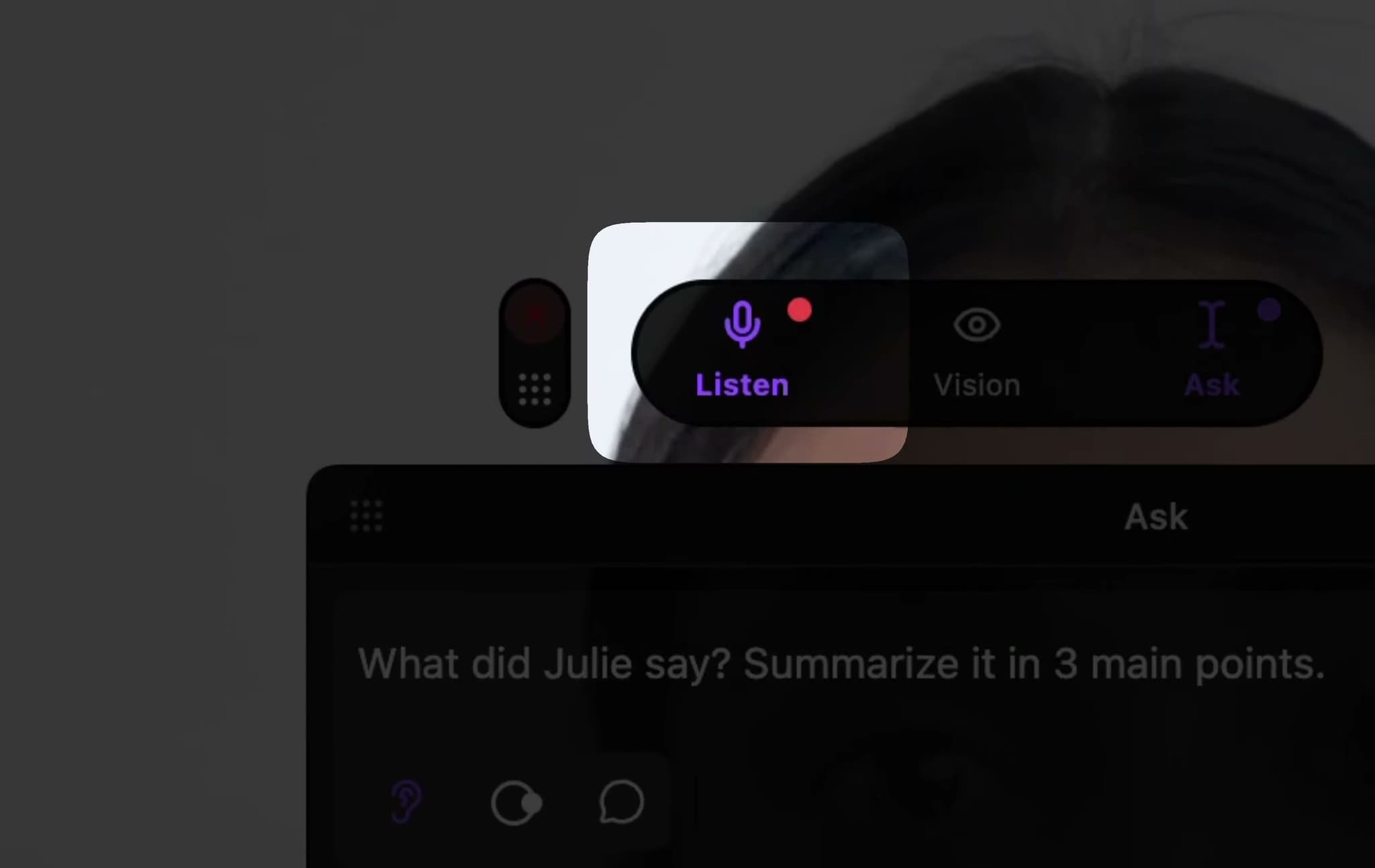
General chat. With Listen active, understands the ongoing meeting.
Context-aware
Pro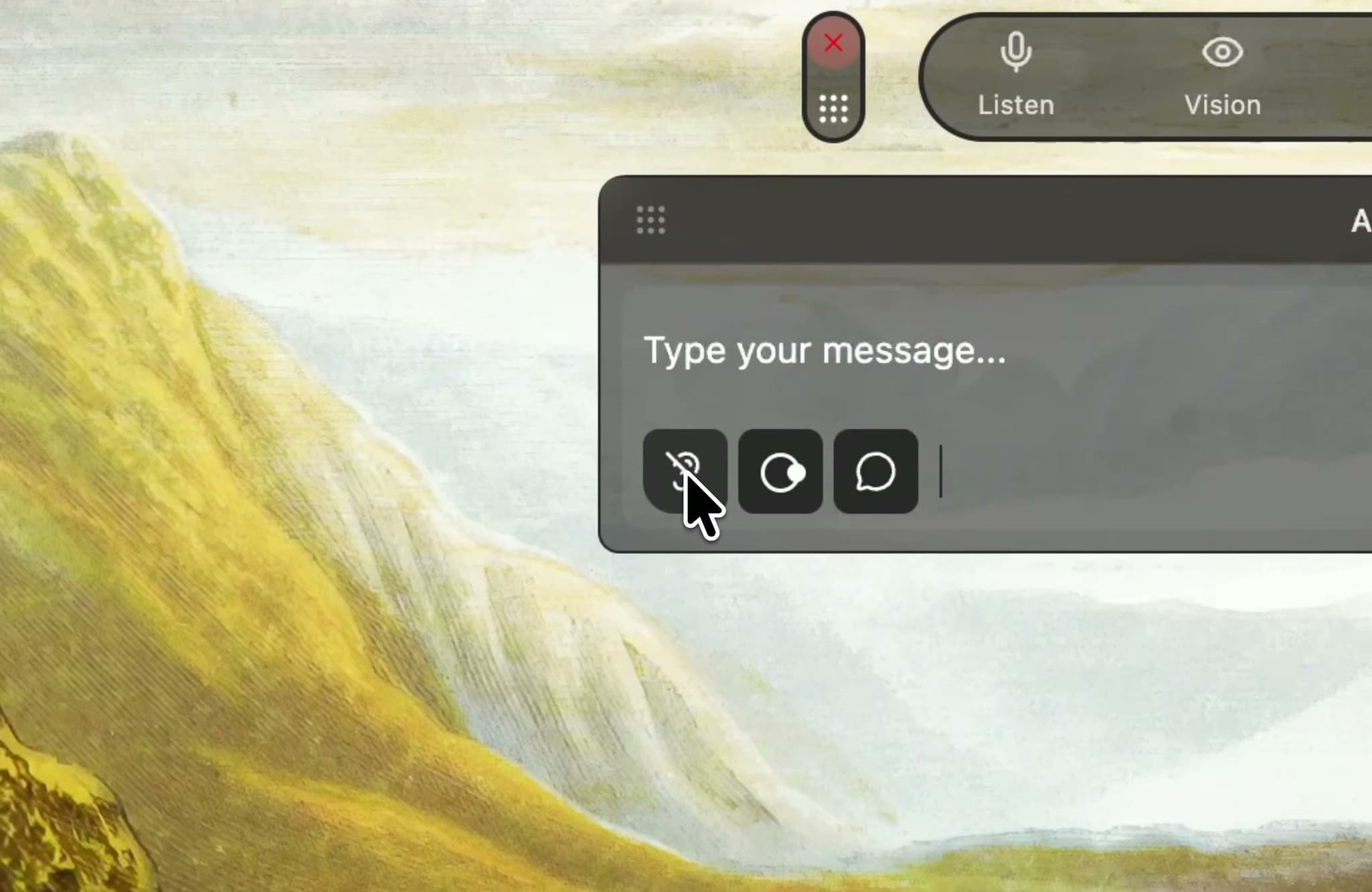
If Listen is active, Ask follows the conversation live — every answer adapts to what’s being said.
GPT model access
Free/Pro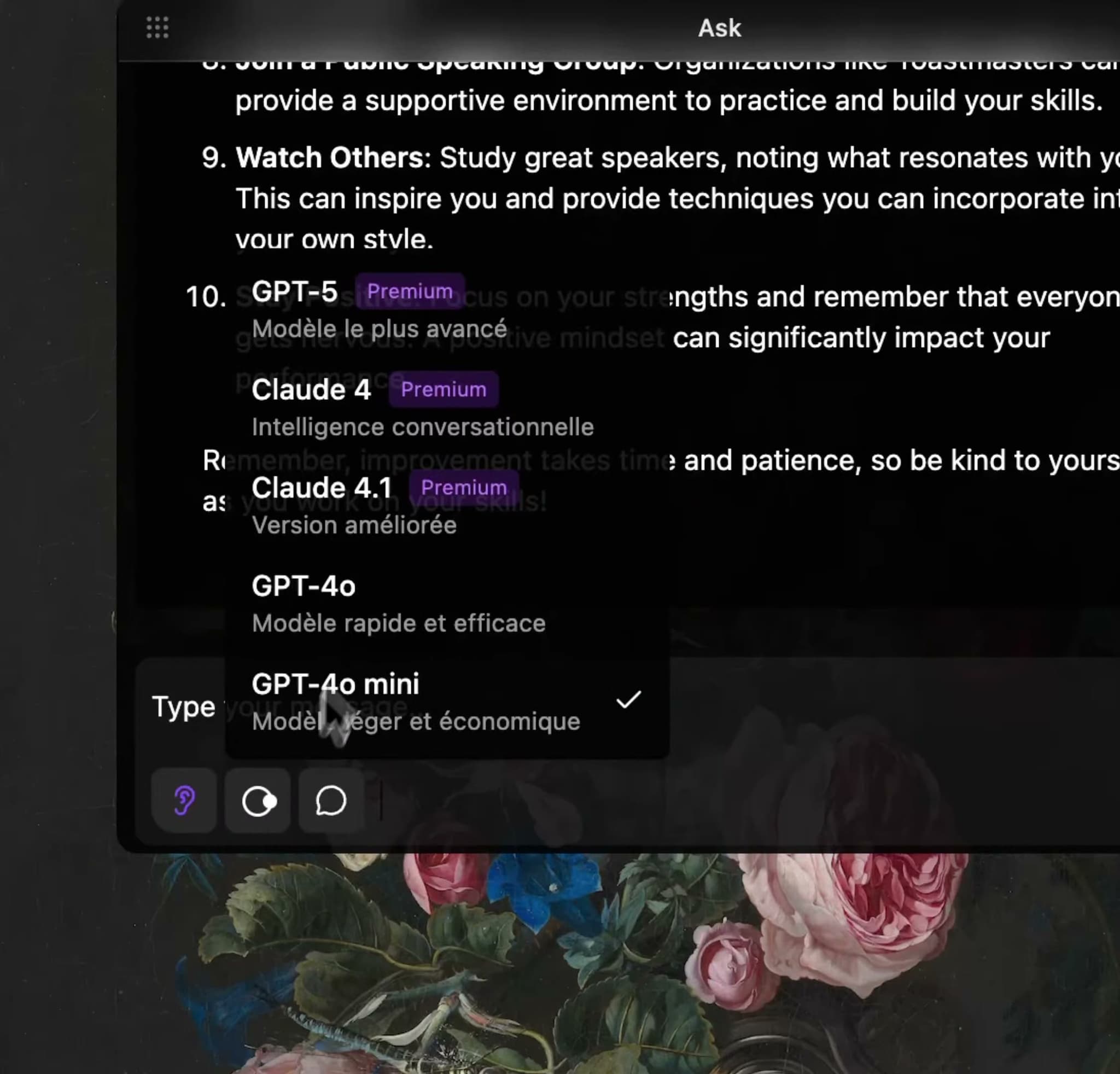
Use GPT-5.4 for deeper reasoning, or lighter GPT models for faster replies.
Smart modes
Free/Pro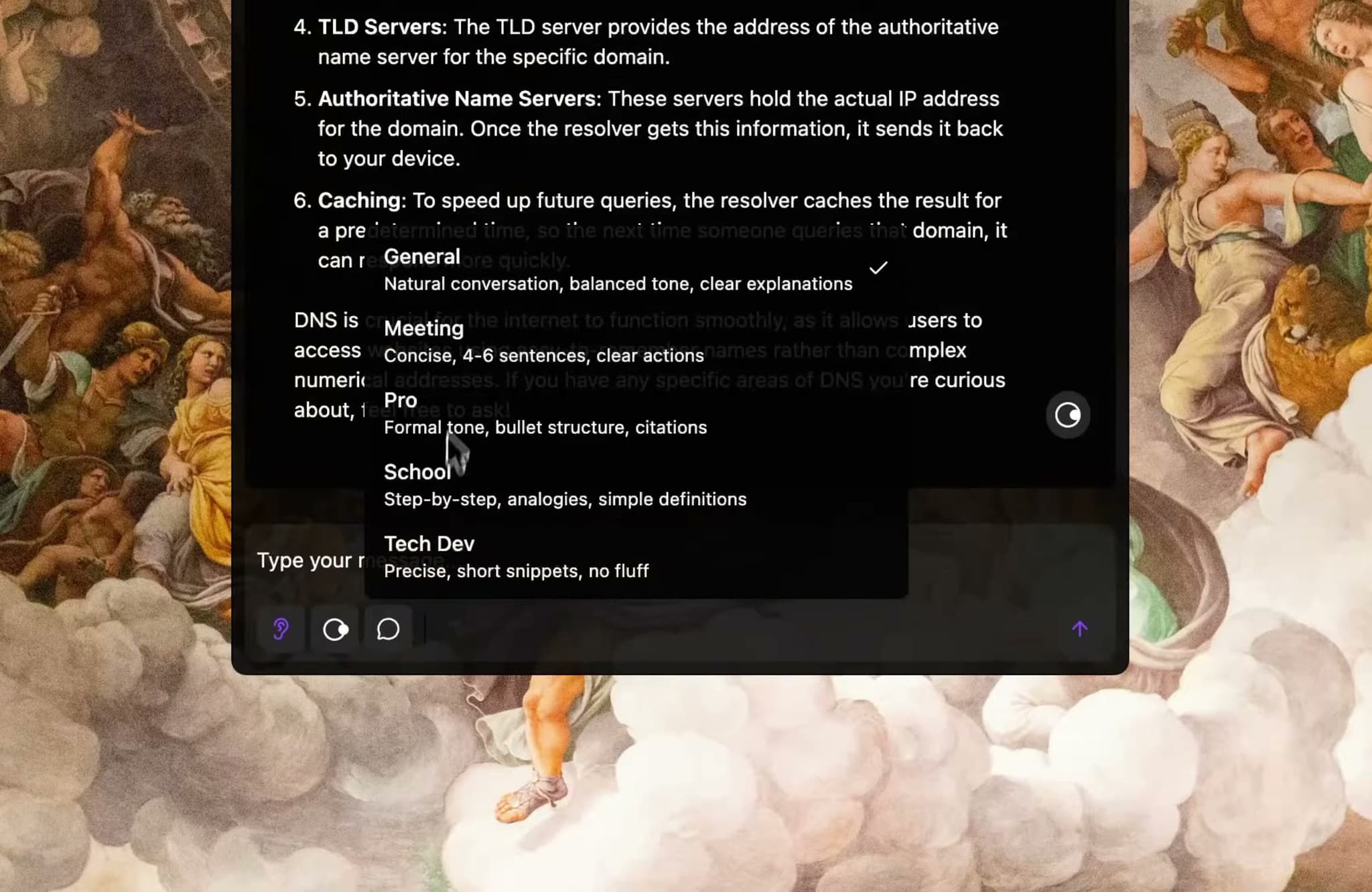
Choose how Ask replies: General, TechDev, Pro, School, or Meeting — tailored to your workflow.
Notes
Automatic and Manual notes that you can refine, translate, and share.
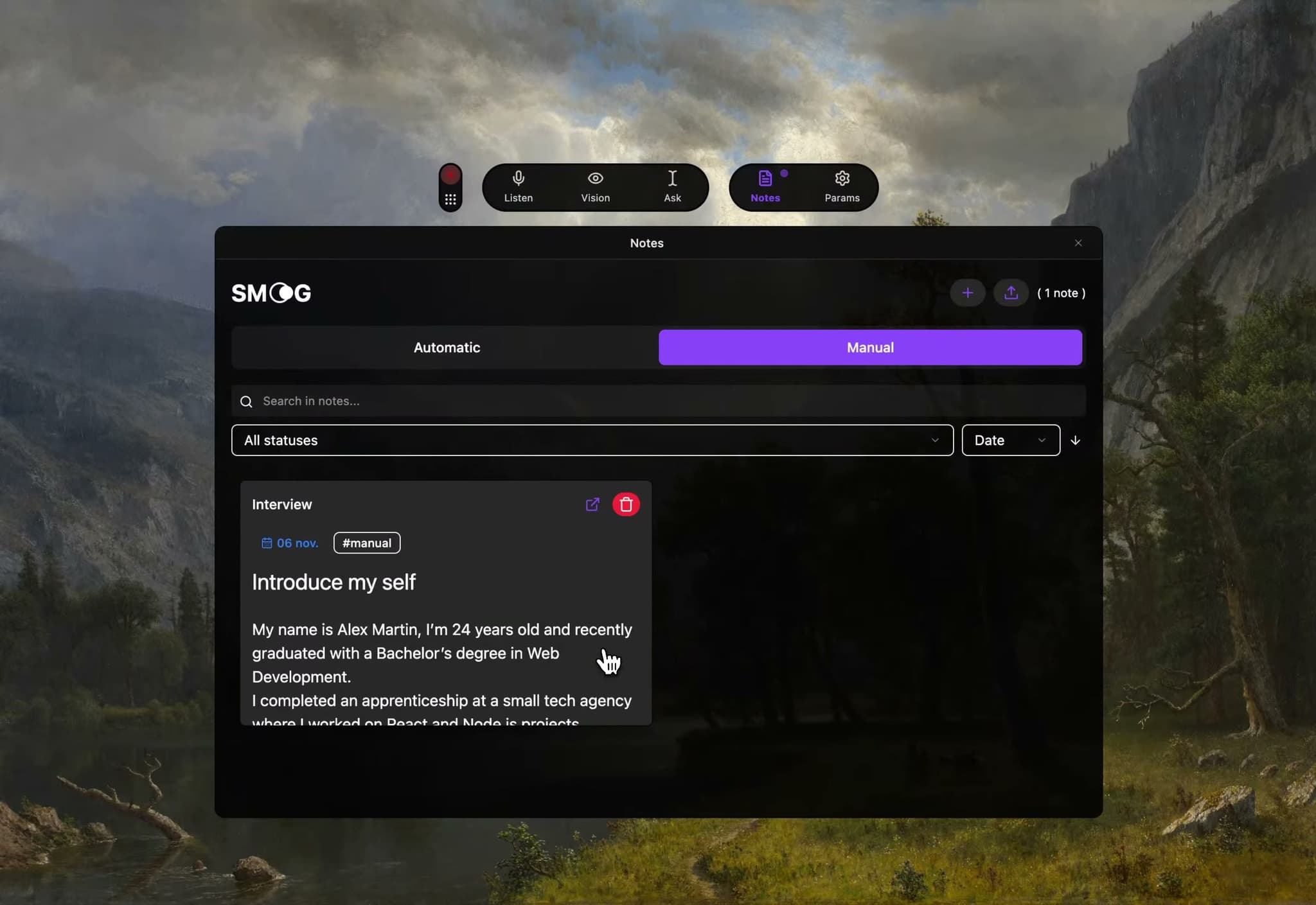
Manual & Auto notes
Free/Pro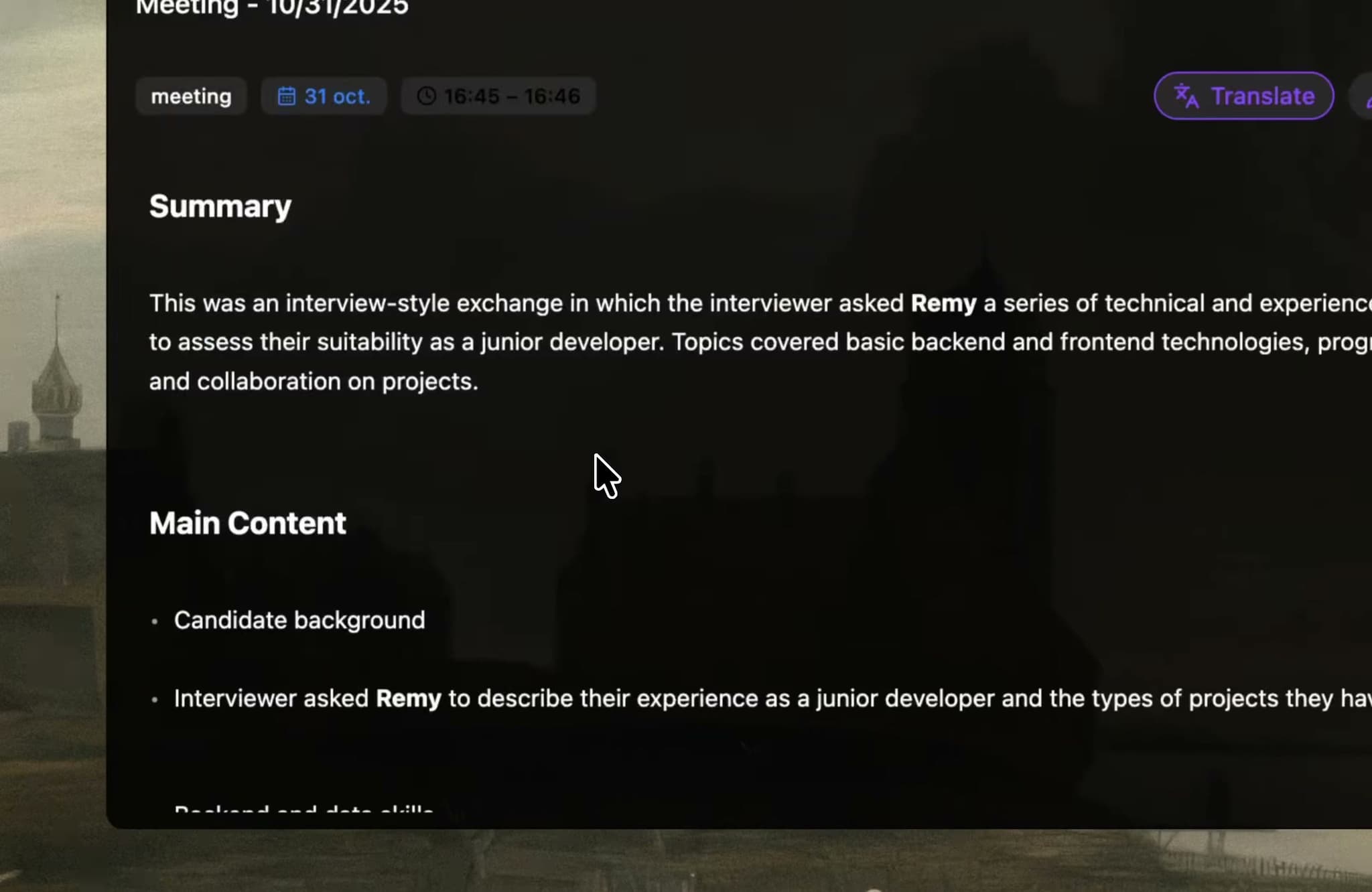
Automatic summaries after each recording, or add your own manual notes anytime.
Detach & Focus
Pro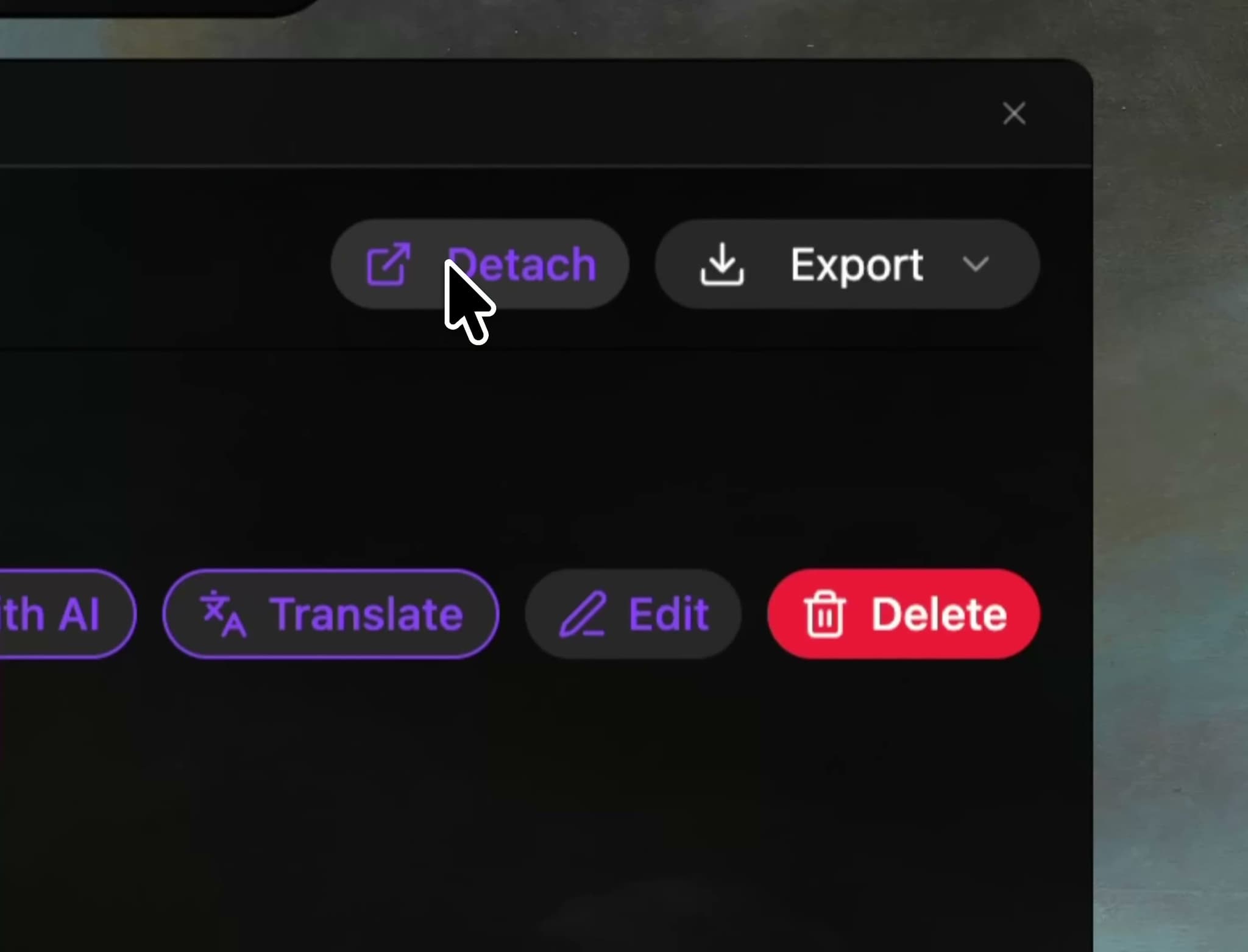
Open any note in a separate floating window — stay focused on what matters.
Export & Enhance
Free/Pro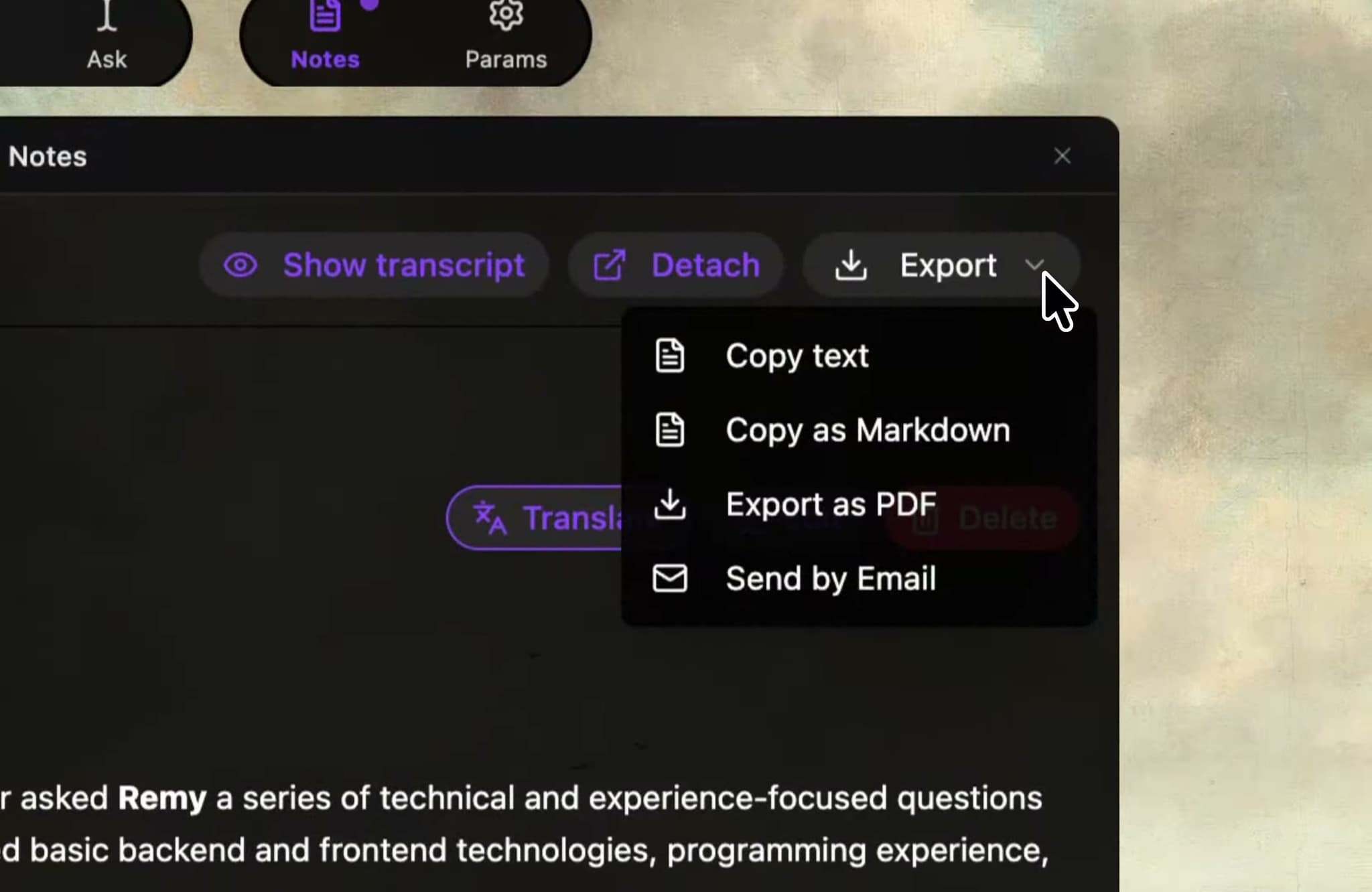
Improve, translate, or export notes as Markdown, PDF, or email — all in one click.
Window Management
A flexible, transparent workspace — made to move, dock, and adapt

Smart Docking
Free/Pro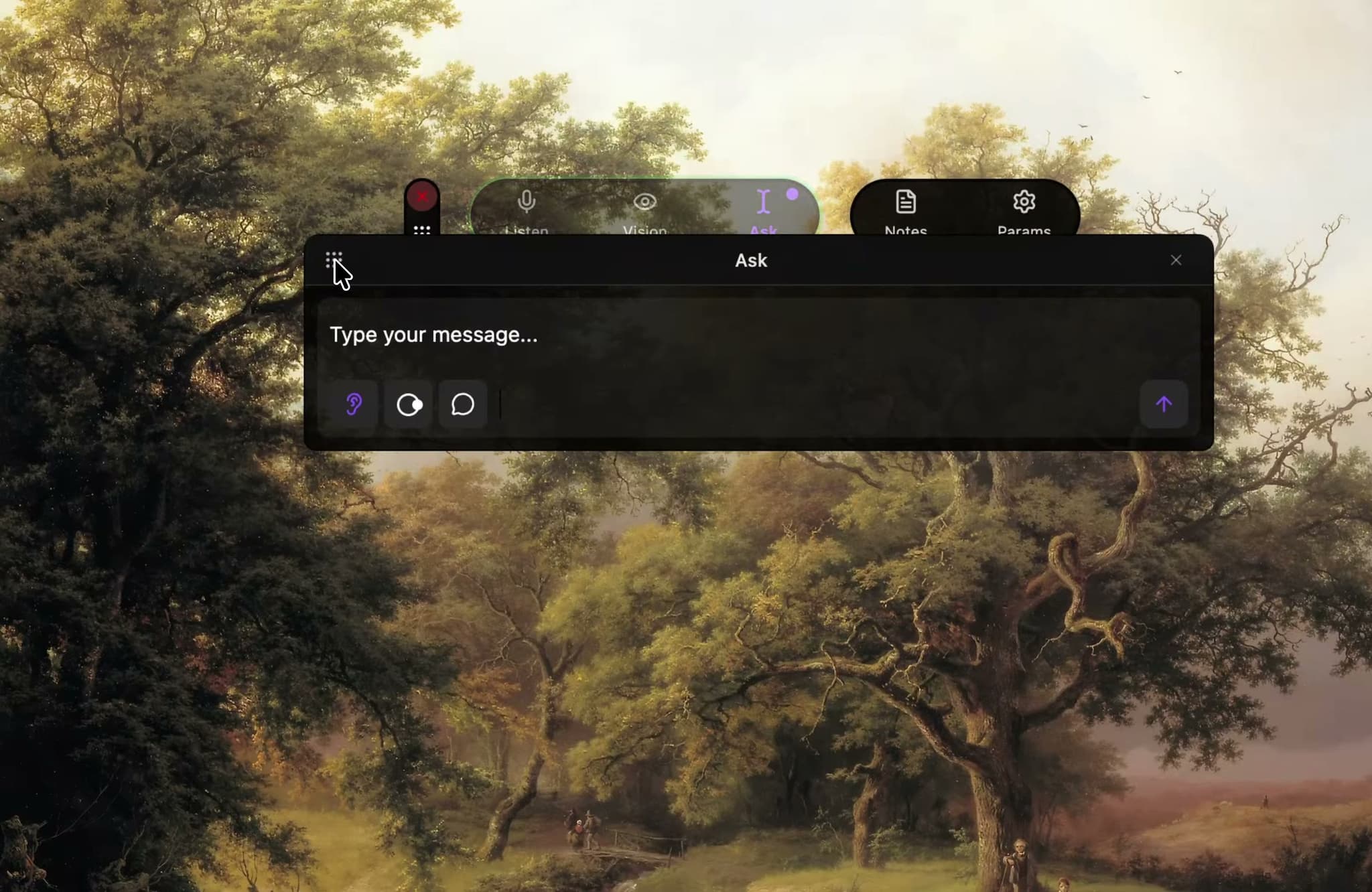
A glowing halo appears when you can re-dock a window to the HUD — smooth, instant, and visual.
Live Resize
Pro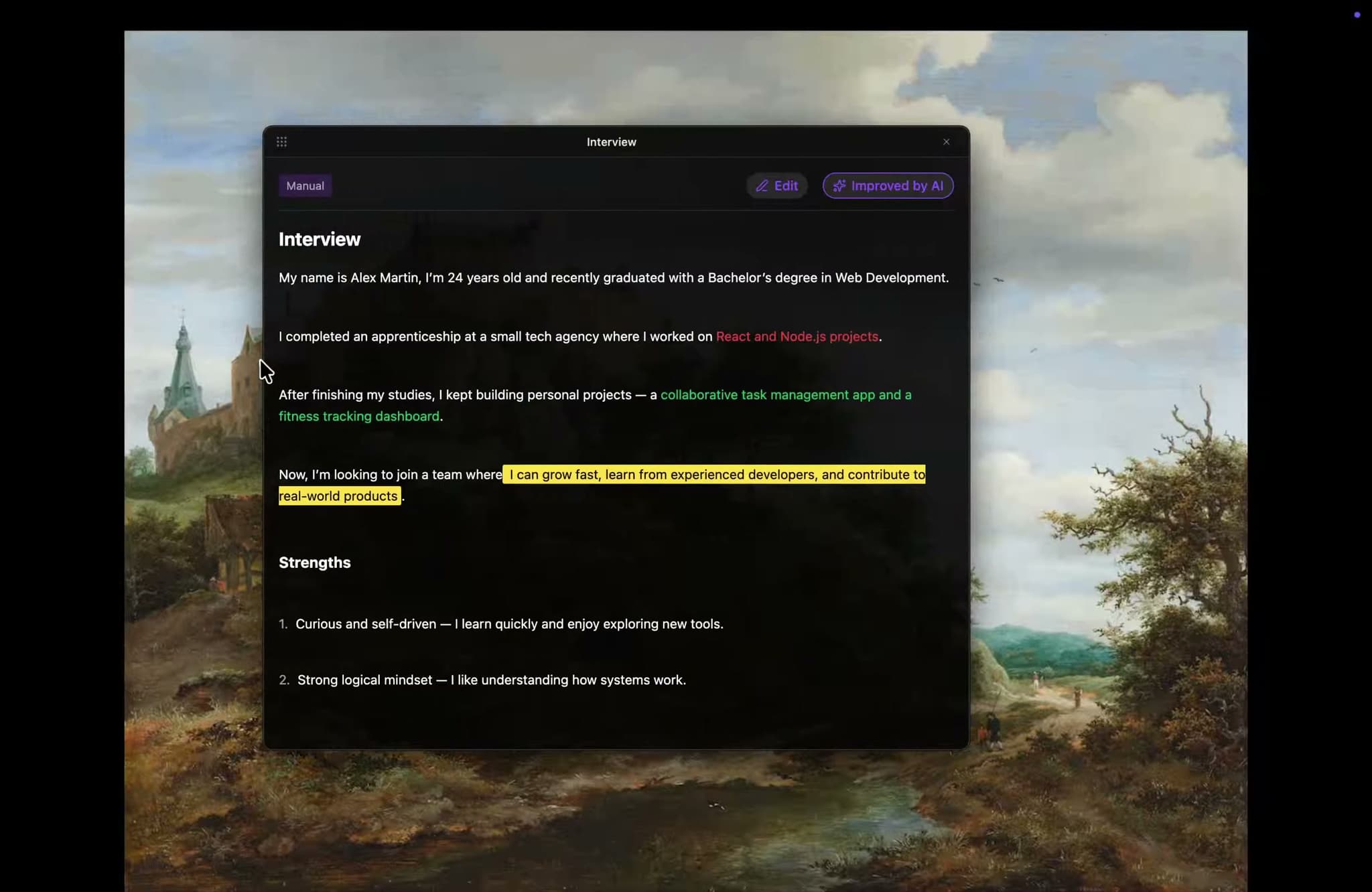
Adjust width or height freely. Each window adapts in real time to your layout and screen space.
Move Between Screens
Free/Pro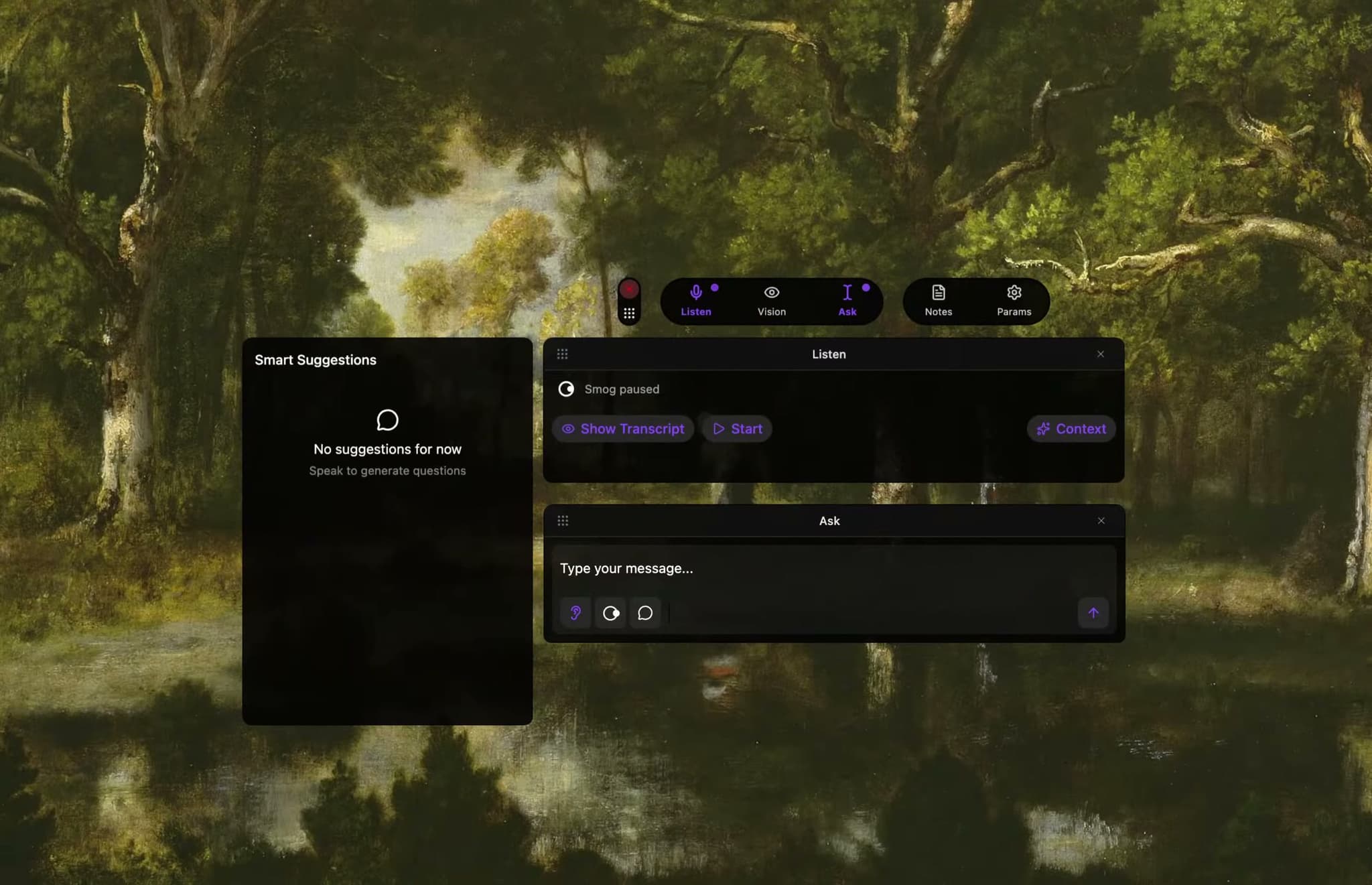
Shift your HUD and windows across displays seamlessly — keep them linked or fully independent.
How Our AI Works
Capture & transcription
Cross features
Full Stealth
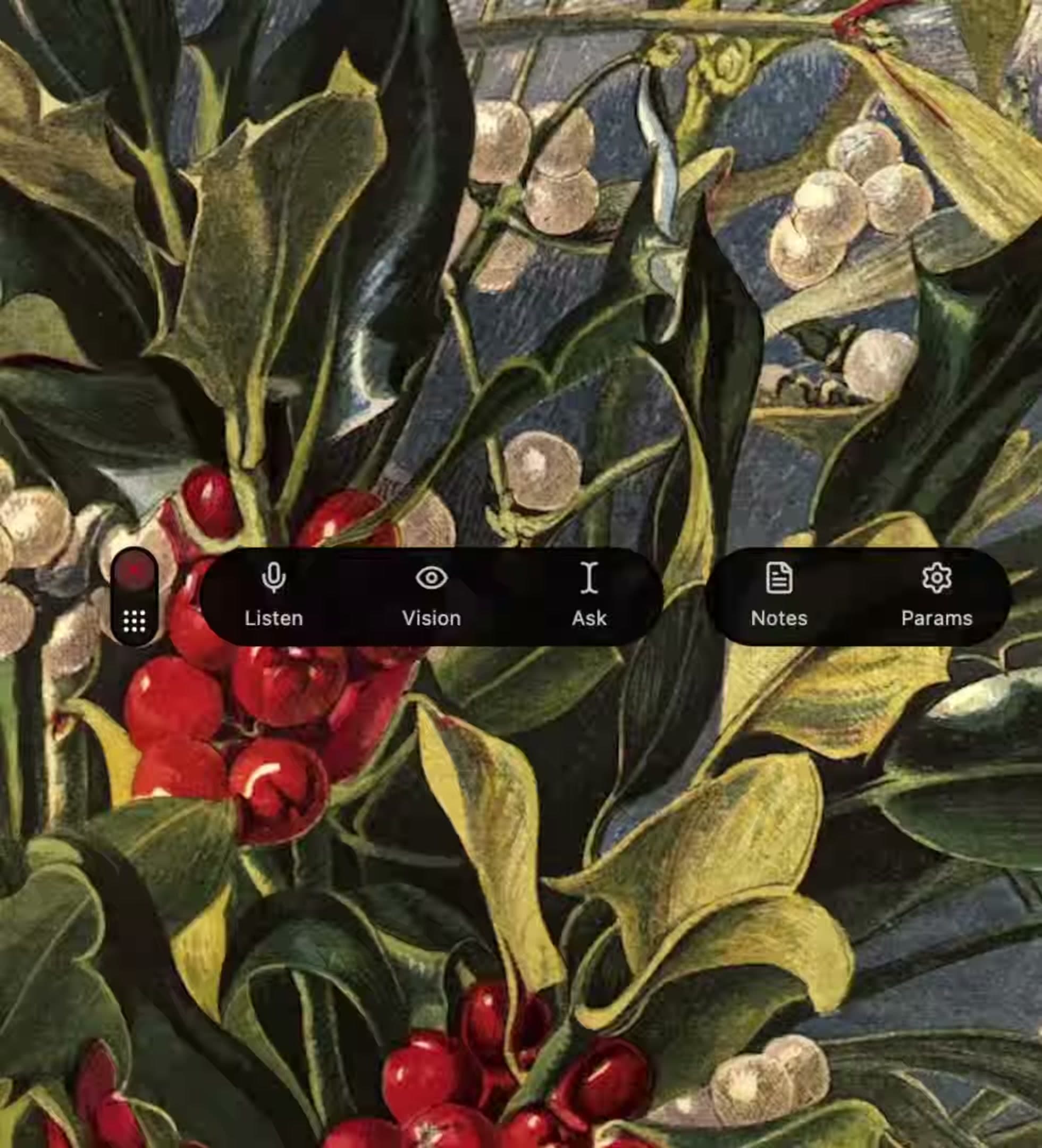
Invisible during screen sharing; instant hide via shortcut.
Detach / Attach
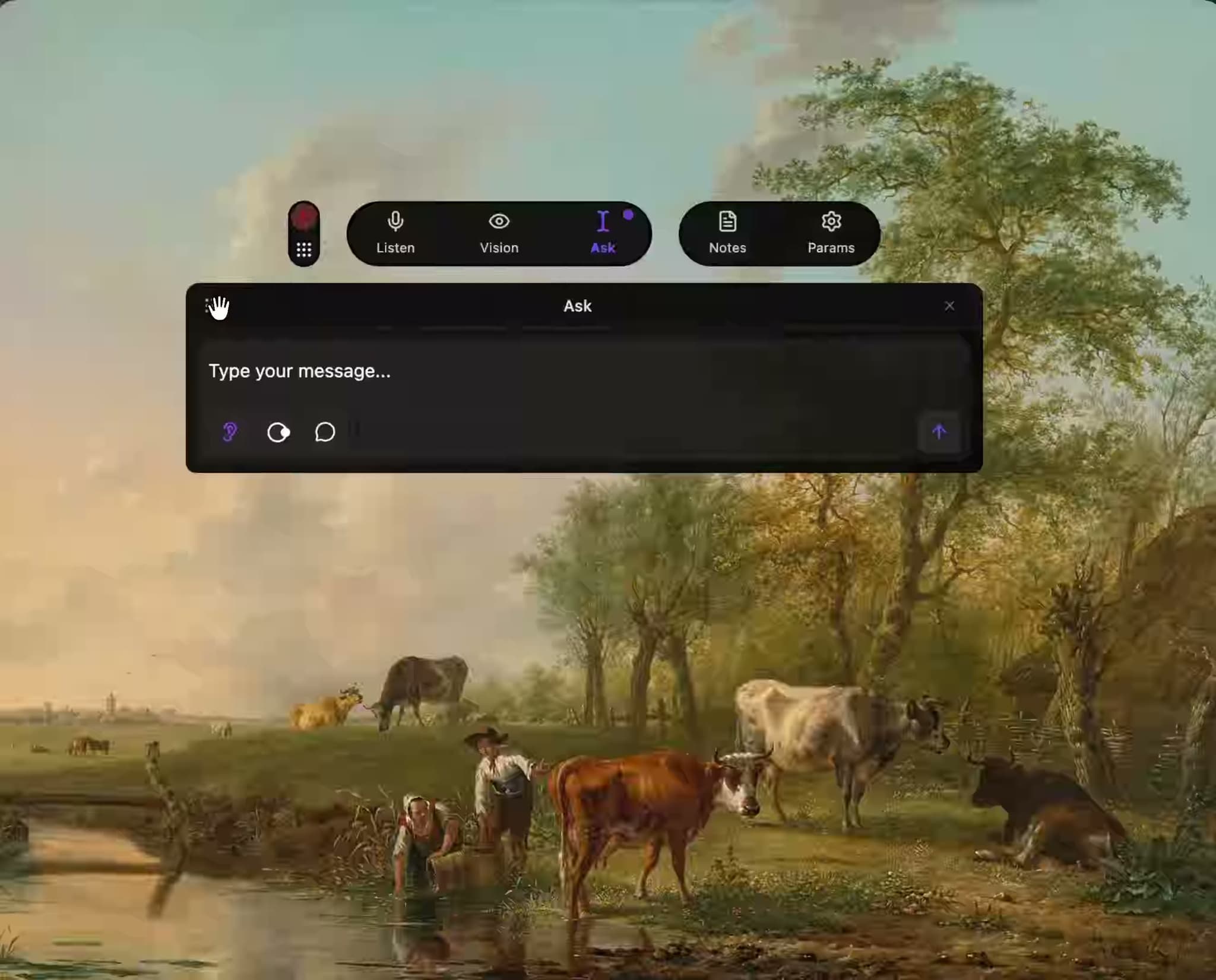
Independent windows, multi-screen setup.
Blackout Shortcut
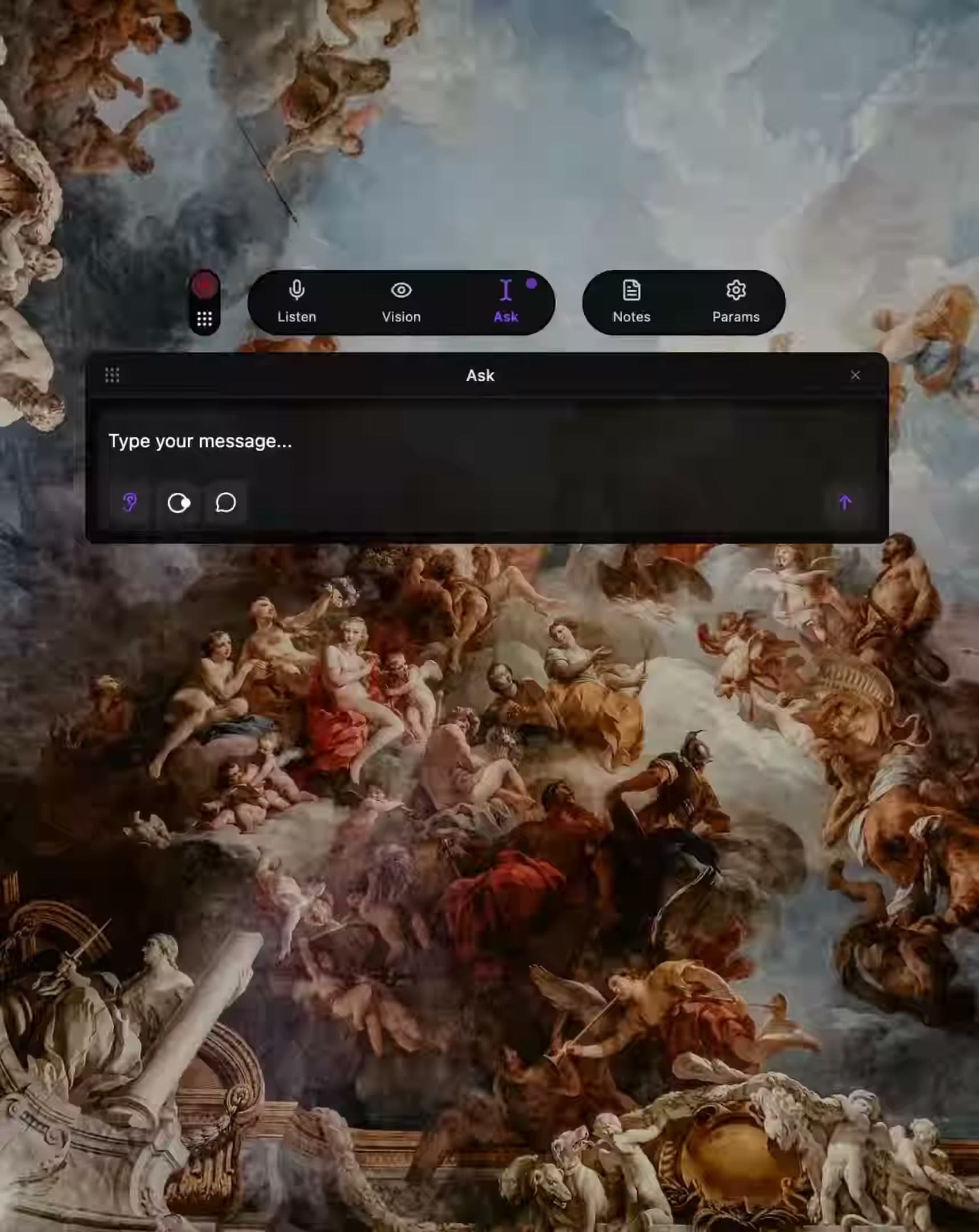
Perfect readability for the transparent HUD.
Themes & Colors
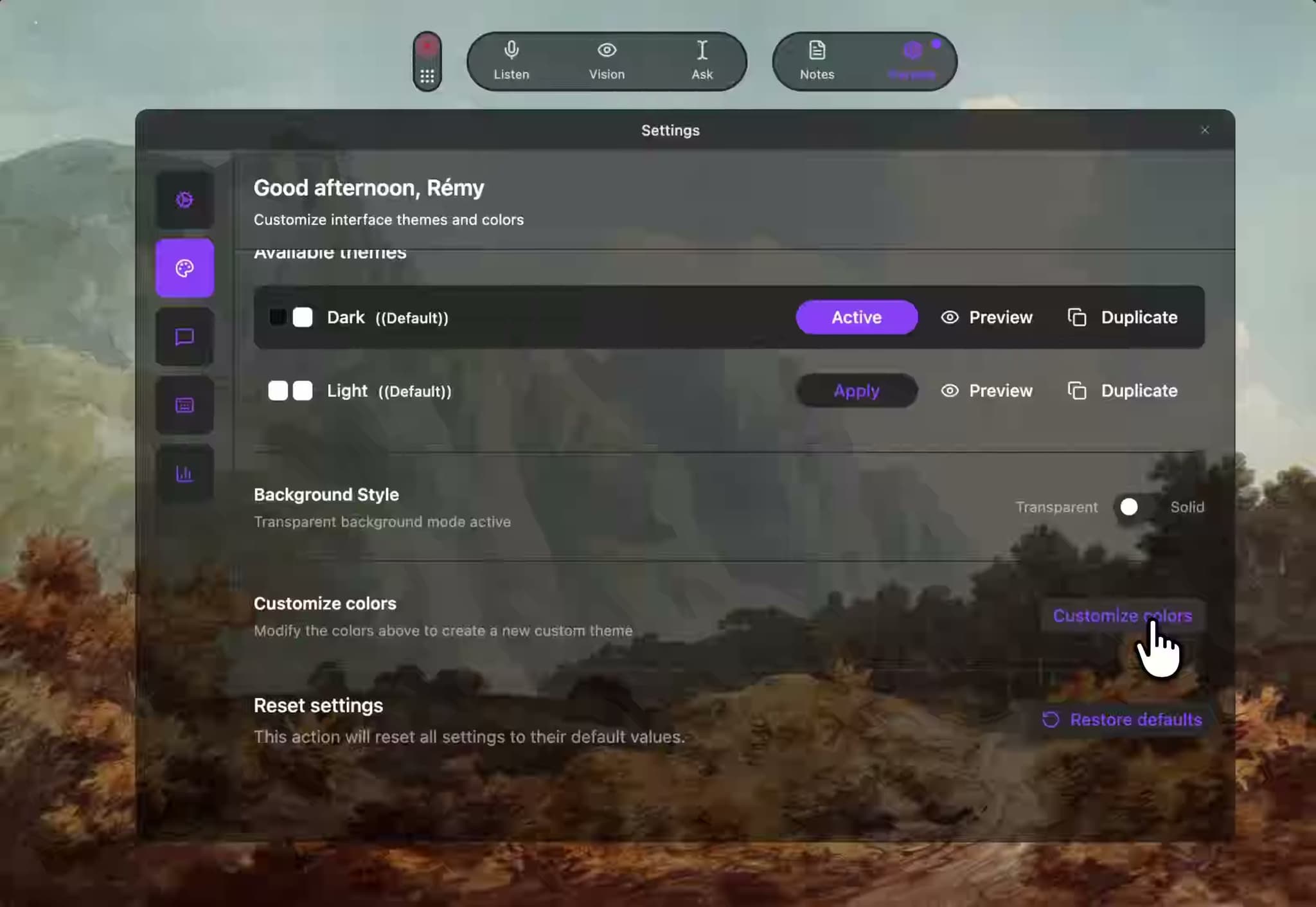
Dark / Light modes + custom palettes.
Response Types
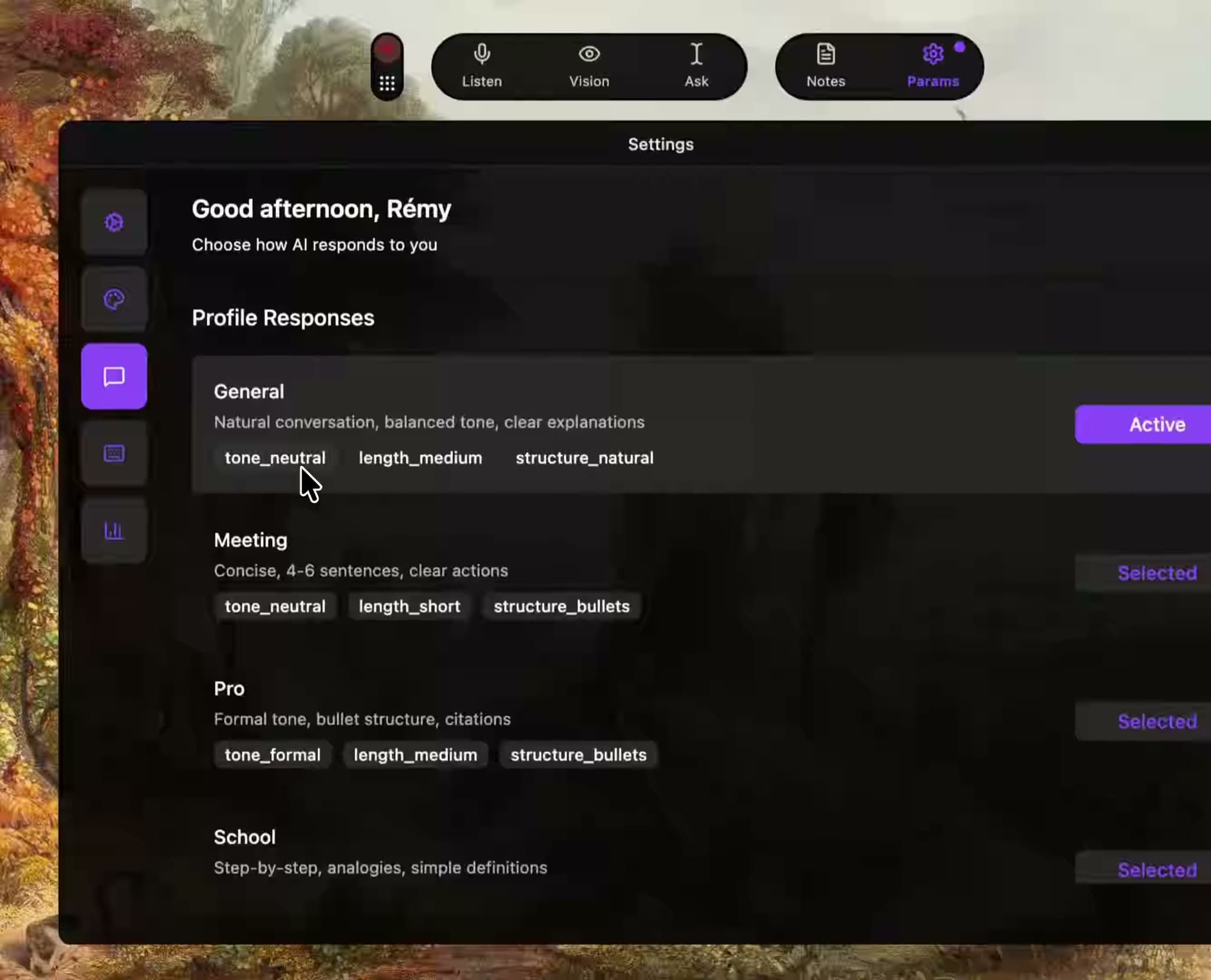
General, Meeting, Pro, School, Tech Dev…
Languages & Detection
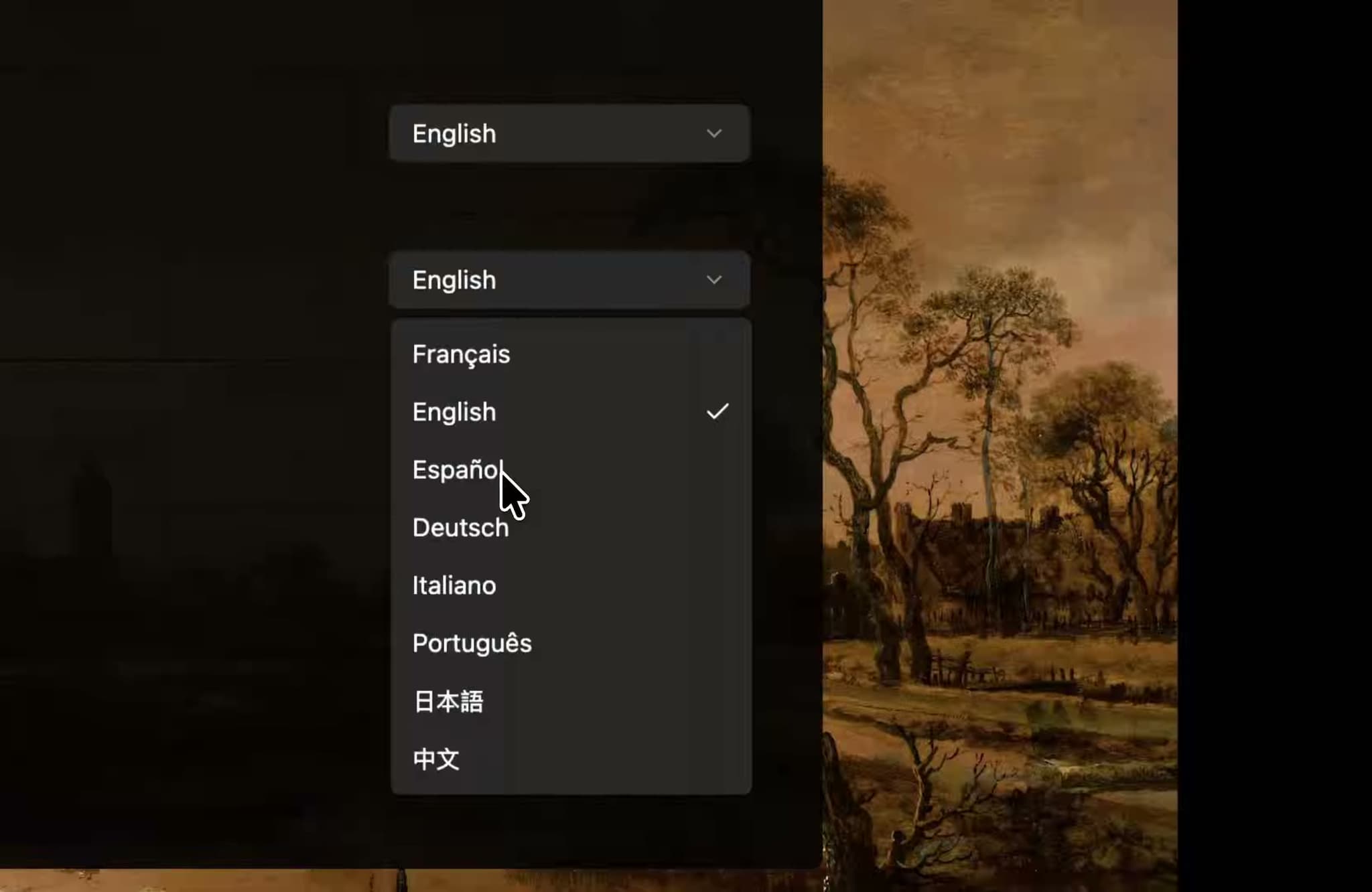
History view, bulk delete, auto-clean every 30 days.
Live Activity
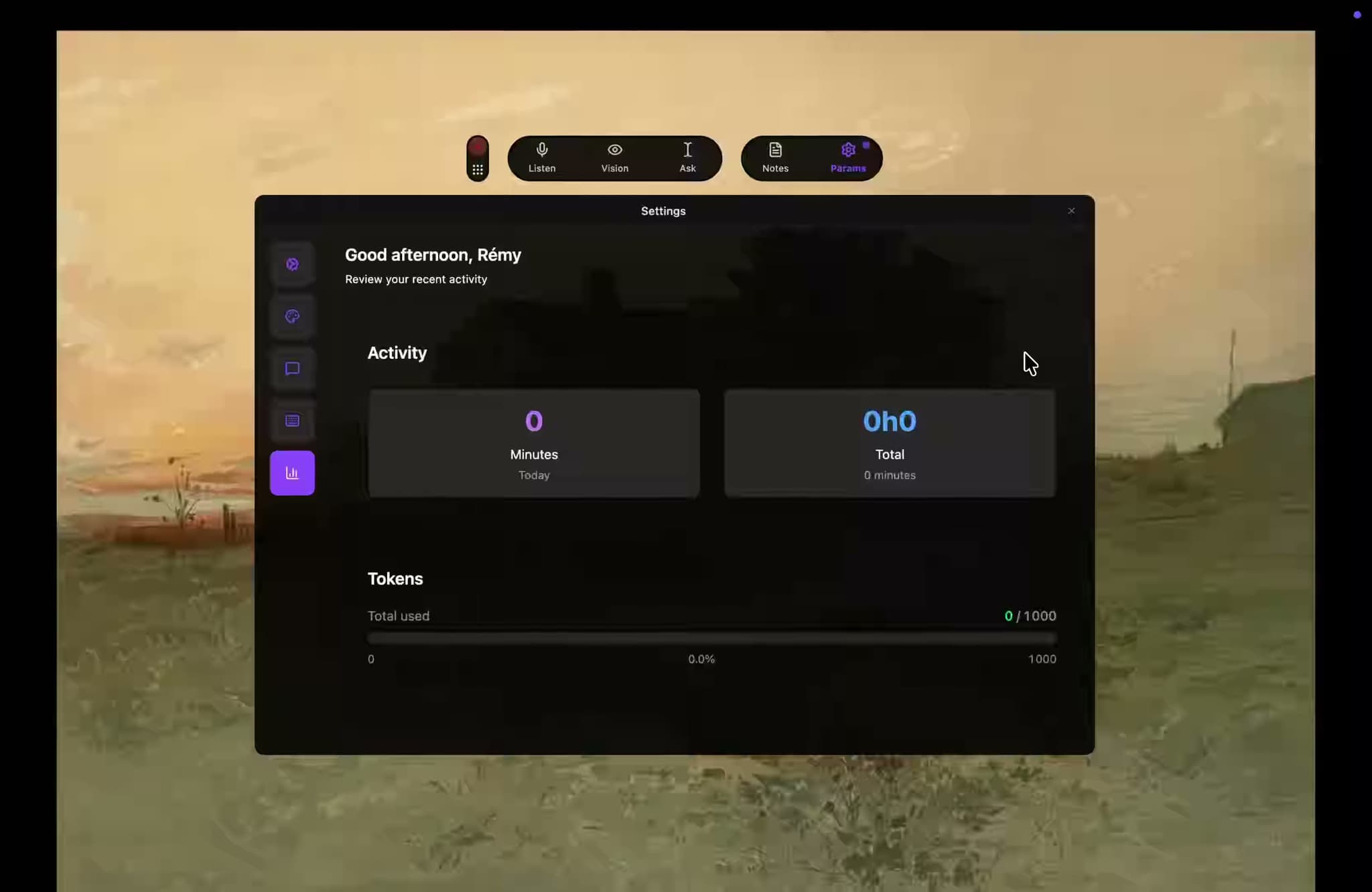
See what the AI is doing in real time.
Notes Translation
Pro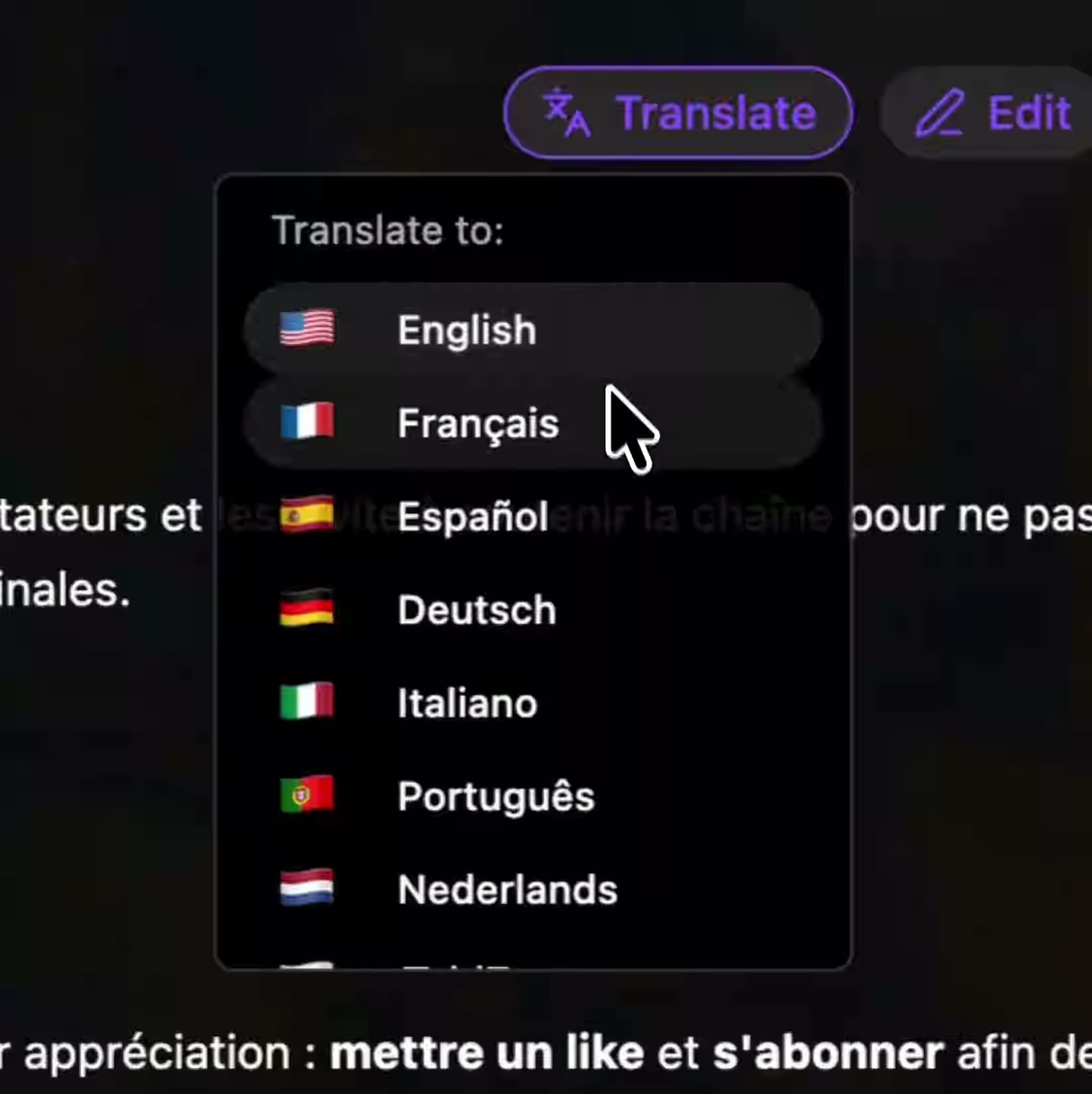
Multi-language support.
Exports
Free/Pro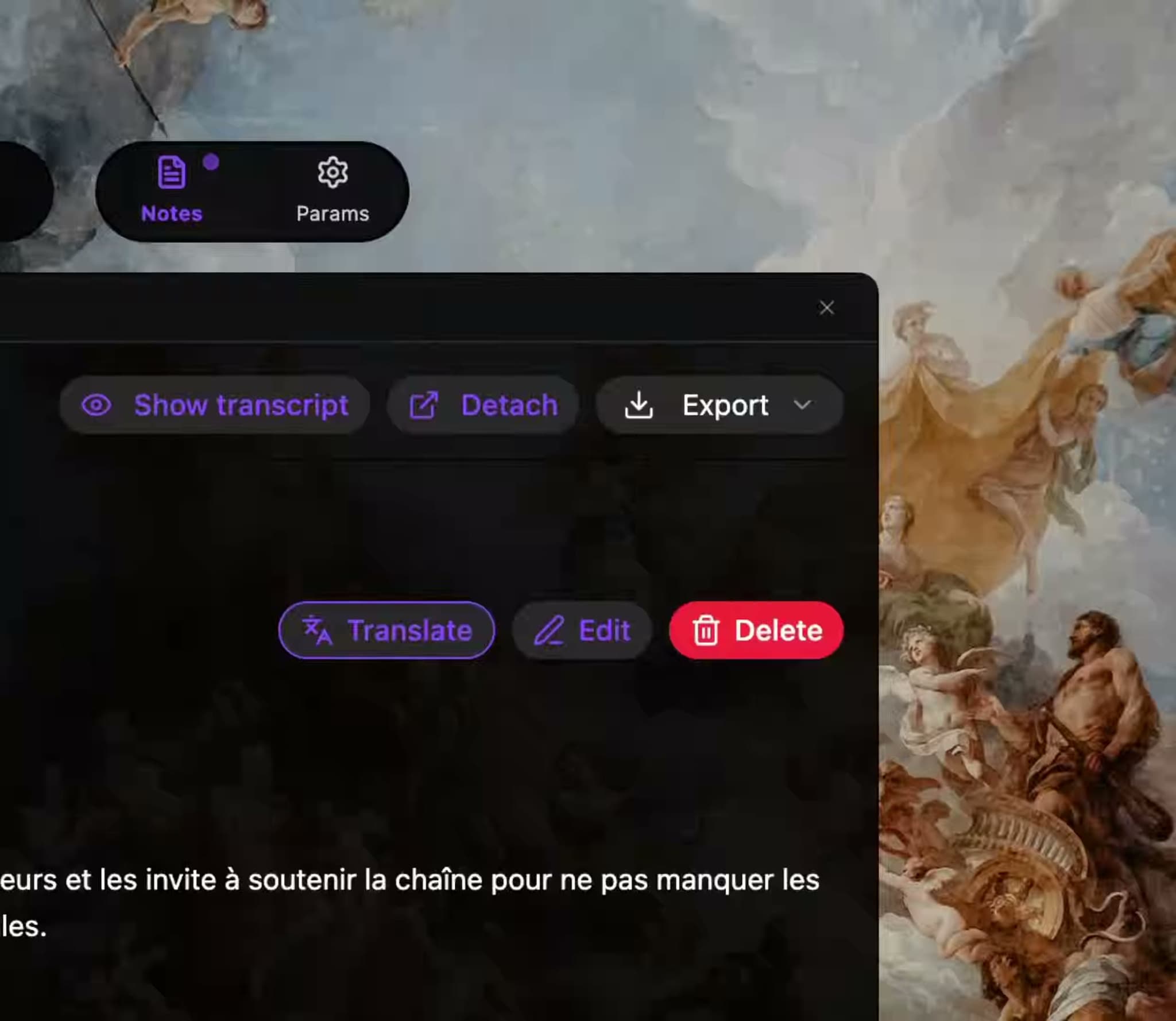
Copy / Markdown / PDF / Email.
Use cases
Use Listen + Ask + Vision to handle any question in real time — generate instant answers, notes, and recruiter-ready exports.
Record and summarize your meeting automatically. Vision understands slides; Notes capture decisions and action items.
Take manual or auto notes, enhance them with AI, translate instantly, and export your study summaries in PDF or Markdown.
Questions we think you
might like answers to
Everything about Smog’s setup, support, and account in one place.
Smog runs on macOS 14.2 or later.
Supported Macs:
- Apple Silicon (M1, M2, M3, M4…)
- Intel Macs — only if they can run macOS 14.2+
Support for Windows 10/11 (x64) is coming soon.
The Smog interface and all your content (messages, transcriptions, notes) are stored locally on your device.
- Smog does not upload or store your conversations on a server.
- We don’t keep a copy of your transcripts or notes in the cloud.
AI features use secure cloud models when you ask for help (summaries, answers, notes, etc.), but:
- Only the minimal text needed for the request is sent.
- Those requests are not saved on our side.
Smog comes with a few essential shortcuts you can customize:
- Quick Hide – instantly hide or show Smog.
- Push-to-Ask – hold to ask the AI a question on the fly.
- Start / Stop Listen – toggle live transcription.
- Toggle Vision – enable or disable screen analysis.
You can configure all shortcuts in Settings → Shortcuts.
See the full list in Smog Guide:
https://smog-ai.com/guide
Can’t find your answer? Contact support.